



How to Fix the “There Seems to Have Been an Error Initializing or Updating Your Transaction” Error on Steam
Steam is one of the most popular gaming platforms that offer a massive collection of games for gamers to enjoy. However, like any other software, Steam is not immune to errors. One of the most common errors that Steam users encounter is the “There seems to have been an error initializing or updating your transaction” error. This error can prevent you from buying games or making any in-game purchases. In this guide, we will discuss how to fix the “There Seems to Have Been an Error Initializing or Updating Your Transaction” Error on Steam.
Read More: How to Fix PSVR2 Controller Issues: Tips and Tricks for PS5 Gamers
Why does this error occur?
This error occurs when Steam is unable to connect to its servers or when there is a problem with your internet connection. Sometimes, the error can also occur due to outdated or corrupted files in the Steam installation directory.
How to Fix the “There Seems to Have Been an Error Initializing or Updating Your Transaction” Error
There are several methods you can use to fix this error on Steam. Here are the steps you can follow:
Method 1: Check your internet connection
The first thing you should do is check your internet connection. If your internet connection is unstable or slow, you may encounter this error. To check your internet connection, follow these steps:
- Open your web browser and try to access any website.
- If the website loads correctly, your internet connection is working fine. If the website doesn’t load or takes too long to load, you need to troubleshoot your internet connection.
- Restart your router/modem and try to reconnect to your internet.
- If the problem persists, contact your internet service provider.
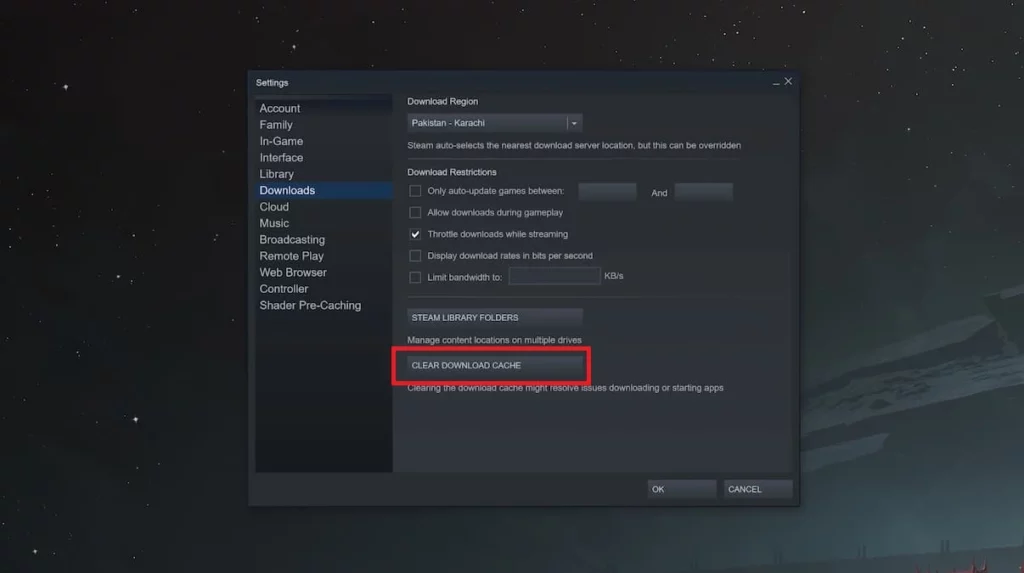
Method 2: Clear Steam’s cache
Sometimes, clearing Steam’s cache can fix this error. To clear Steam’s cache, follow these steps:
- Click “Steam” in Steam’s top-left corner.
- Choose “Settings” from the dropdown menu.
- Select “Downloads“.
- Choose “Clear Download Cache.”
- Restart Steam and buy again.
Method 3: Examine game files
Corrupted game files may cause in-game purchasing errors. Verifying the game file’s integrity fixes this. Here are the steps you can follow:
- Open Steam and go to your library.
- Right-click the error-causing game and click “Properties” from the dropdown menu.
- Click on the “Local Files” tab.
- Click on the “Verify Integrity of Game Files” button.
- When the procedure finishes, try buying again.
Step 4: Disable the antivirus
Antivirus software can sometimes cause Steam to malfunction. To fix this, temporarily disable your antivirus program. Here are the steps you can follow:
- Right-click the taskbar antivirus icon.
- Disable or pause from the drop-down menu.
- Try to make your purchase again.
Method 5: Reinstall Steam
If none of the above methods work, you can try reinstalling Steam. Here are the steps you can follow:
- Open the Control Panel and click on “Programs and Features.”
- Select Steam from the list of programs and click on “Uninstall.”
- Follow the prompts to uninstall Steam.
- Download the latest version of Steam from the official website and install it.
Conclusion
The “There seems to have been an error initializing or updating your transaction” error on Steam can be frustrating, but it is fixable. By following the methods outlined in this guide, you should be able to fix the error and make your purchases without any issues.
